
| 1. Accounts Payable | This represents balances owed to vendors for goods, supplies, and services purchased on an open account. Accounts payable balances are used in accrual-based accounting, are generally due in 30 or 60 days, and do not bear interest. |
| 2. Accounts Receivable | This represents amounts owed by customers for items or services sold to them when cash is not received at the time of sale. Typically, accounts receivable balances are recorded on sales invoices that include terms of payment. Accounts receivable are used in accrual-based accounting. |
| 3. Accumulated Depreciation | This is a contra asset account to depreciable (fixed) assets such as buildings, machinery, and equipment. Depreciable basis (expense) is the difference between an asset's cost and its estimated salvage value. Recording depreciation is a way to indicate that assets have declined in service potential. Accumulated depreciation represents total depreciation taken to date on the assets. |
| 4. Cash | This represents deposits in banks available for current operations, plus cash on hand consisting of currency, undeposited checks, drafts, and money orders. |
| 5. Cost of Sales | This represents the known cost to your business for items or services when sold to customers. Cost of sales (also known as cost of goods sold) for inventory items is computed based on inventory costing method (FIFO, LIFO, or Average Cost). LIFO is not allowed by International Accounting Standards |
| 6. Equity - Doesn't Close | This represents equity that is carried forward from year to year (like common stock). Equity is the owner's claim against the assets or the owner's interest in the entity. These accounts are typically found in corporation-type businesses. |
| 7. Equity - Gets Closed | This represents equity that is zeroed out at the end of the fiscal year, with their amounts moved to the retained earnings account. Equity, also known as capital or net worth, are owners' (partners' or stockholders') claims against assets they contributed to the business. |
| 8. Equity - Retained Earnings | This represents the earned capital of the enterprise. Its balance is the cumulative, lifetime earnings of the company that have not been distributed to owners. |
| 9. Expenses | These represent the costs and liabilities incurred to produce revenues. The assets surrendered or consumed when serving customers indicate company expenses. If income exceeds expenses, net income results. If expenses exceed income, the business is said to be operating at a net loss. |
| 10. Fixed Assets | These represent property, plant, or equipment assets that are acquired for use in a business rather than for resale. They are called fixed assets because they are to be used for long periods of time. |
| 11. Income | Income (also known as revenue) represents the inflow of assets resulting from the sale of products and services to customers. If income exceeds expenses, net income results. If expenses exceed income, the business is said to be operating at a net loss. |
| 12. Inventory | This represents the quantity (value) of goods on hand and available for sale at any given time. Inventory is considered to be an asset that is purchased, manufactured (or assembled), and sold to customers for revenue. |
| 13. Other Assets | This represents those assets that are considered nonworking capital and are not due for a relatively long period of time, usually more than one year. Notes receivable with maturity dates at least one year or more beyond the current balance sheet date are considered to be "noncurrent" assets. |
| 14. Other Current Assets | This represents those assets that are considered nonworking capital and are due within a short period of time, usually less than a year. Prepaid expenses, employee advances, and notes receivable with maturity dates of less than one year of the current balance sheet date are considered to be "current" assets. |
| 15. Other Current Liabilities | This represents those debts that are due within a short period of time, usually less than a year. The payment of these debts usually requires the use of current assets. |
Monday, January 26, 2009
Account Types
Account Type is compulsory for all account that you set up. In Peachtree Premium 2008, there are 15 account type includes the following:

Set Up Chart of Account
Chart of accounts is the underlying system for all the work you do in Peachtree. Each time you save (or post) a transaction, an entry is made to at least two accounts – a debit or credit.
If during setting up a company, you select to build chart of account from sample business type, there will be a list of account created already for you. However, if you select to build your own chart of account, there will be no any account yet in account list.
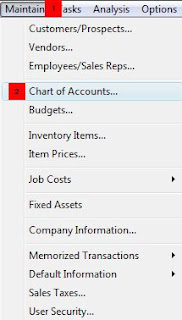
1. Select Maintain on menu, click on Chart of Accounts…
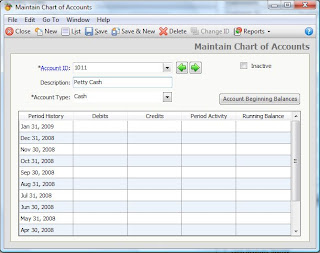
2. Enter Account ID, Description, and select Account Type.
3. Click on Save or Save & New.
If during setting up a company, you select to build chart of account from sample business type, there will be a list of account created already for you. However, if you select to build your own chart of account, there will be no any account yet in account list.
1. Select Maintain on menu, click on Chart of Accounts…

2. Enter Account ID, Description, and select Account Type.

3. Click on Save or Save & New.
Thursday, January 22, 2009
Set Up User Account
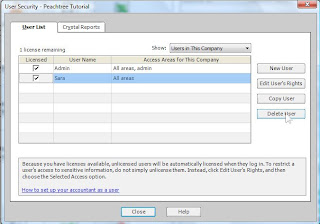
The User Security feature is handled by a number of windows that let you create a company administrator, who has the right to set up other company users, and then enter and grant rights to those users.
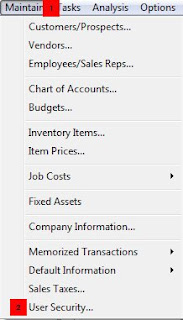
1. Click Maintain, then select User Security.
2. Click New User.
Note on the Show: there are two options:
- User in This Company: Peachtree shows only user that use current opened company.
- User in All Companies: Peach shows all users for all companies that you used to accessed either in your local computer or on the network.
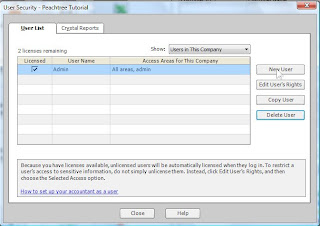
3. If you have not yet set up password for Administrator, you need to do it by typing password and click Save.
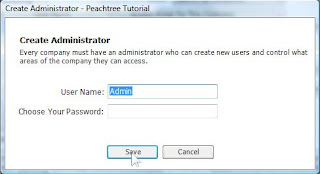
4. Now the password of Admin is defined. If you want to create user for other staff, select New User again.
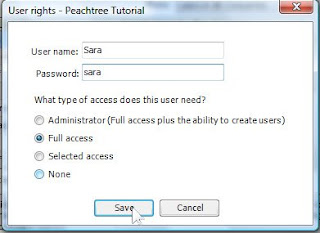
5. Enter user name and password. Then select one of the four access rights. Then select Save or Next.
- Administrator: this user can do anything in the system.
- Full access: this user can do anything, expect create new user.
- Selected access: you customize the right for the user, for example, allowing user to use only sale module, etc.
- None: user cannot do anything in the system. This option is used when for example the user is on leave.
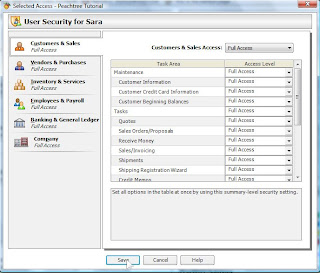
6. If you select Selected access in step 5 above, the next following window open to let you select the user right. Define the right of user and click Save.
7. In case you want to edit the right of user, select on user and click Edit User’s Right.
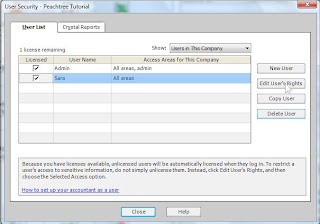
8. In case you want to delete user, select on user and click Delete.
1. Click Maintain, then select User Security.

2. Click New User.
Note on the Show: there are two options:
- User in This Company: Peachtree shows only user that use current opened company.
- User in All Companies: Peach shows all users for all companies that you used to accessed either in your local computer or on the network.

3. If you have not yet set up password for Administrator, you need to do it by typing password and click Save.

4. Now the password of Admin is defined. If you want to create user for other staff, select New User again.
5. Enter user name and password. Then select one of the four access rights. Then select Save or Next.
- Administrator: this user can do anything in the system.
- Full access: this user can do anything, expect create new user.
- Selected access: you customize the right for the user, for example, allowing user to use only sale module, etc.
- None: user cannot do anything in the system. This option is used when for example the user is on leave.

6. If you select Selected access in step 5 above, the next following window open to let you select the user right. Define the right of user and click Save.

7. In case you want to edit the right of user, select on user and click Edit User’s Right.

8. In case you want to delete user, select on user and click Delete.

Subscribe to:
Posts (Atom)